Level
Beginner
Steps
3
Time
About 10 minutes
You’ll need
WooCommerce 10.0 or later, and the IDs of the products you want in the link
A WooCommerce checkout link is a URL that fills the cart and opens checkout in one click. WooCommerce calls them shareable checkout URLs and has included them since version 10.0: /checkout-link/?products=123:2,456:1&coupon=SPRING10 adds two products and a coupon. The link can’t set your own price or stop working on a date you choose. For those, you need a plugin.
-
01
Find the product or variation IDs
A checkout link adds simple products and single variations, and it names each one by its ID. In Products, hover over a product’s name and the ID appears under it. For a variable product, use the ID of the exact variation: edit the product and open the Variations section to find it.
-
02
Build the WooCommerce checkout link
Start with your store’s address and add
/checkout-link/?products=. List each product as its ID and a quantity, joined by a colon, with a comma between products. Leave a quantity off and WooCommerce adds one.Checkout link · two productshttps://yourstore.com/checkout-link/?products=123:2,456:1That adds two of product 123 and one of product 456. The
/checkout-link/part is fixed, so you can’t rename it. A product set to sell one per order arrives as one, whatever quantity the link asks for. -
03
Add a coupon to the checkout link and test it
Add
&coupon=and the code. WooCommerce applies it as though the shopper had typed it, so the coupon’s own expiry date and usage limits still count. Each link takes one code.Checkout link · with a couponhttps://yourstore.com/checkout-link/?products=123:2,456:1&coupon=SPRING10Open the link in a private window, so you arrive as a new customer would. You should land on checkout with both products in the cart and the discount applied.
UTM tags come along too. Add
&utm_source=newsletterand it’s still on the address when checkout opens, so WooCommerce’s order attribution can record where the order came from.
A direct checkout link for one product
Before WooCommerce 10, stores linked to checkout with the add-to-cart URL, and it still works. When Business Bloomer asked in July 2025, WooCommerce said it had no plans to remove it. Add ?add-to-cart= to your checkout URL and the shopper lands on checkout with the product in the cart.
https://yourstore.com/checkout/?add-to-cart=123&quantity=2This URL takes one product. The exception is a grouped product, where each item in the group can have a quantity: ?add-to-cart=GROUP_ID&quantity[ITEM_ID]=2. It adds to whatever is already in the cart and has no coupon parameter. For a single product, it’s all you need, even on a store older than WooCommerce 10.
What WooCommerce checkout links can’t do
The built-in links handle a simple promotion well. They stop at anything the offer needs beyond products and a coupon:
- Neither link has a price field. To sell a kit at the price you advertised, you’d have to build a coupon that happens to land on that number.
- The checkout link empties the cart before it adds anything, so a shopper loses whatever they’d already picked.
- A link never closes. There’s no start or end date and no cap on orders, so last year’s sale link still fills a cart. Only the coupon’s expiry ends the discount.
- The checkout link always lands on checkout. You can’t send people to the cart first, or leave them on the blog post they were reading.
- There’s no screen for building links. You type each one, and a wrong ID shows the shopper an error instead of a full cart.
Tracking is partly covered. Give each link its own utm_campaign and order attribution saves it with the order, where you’ll see it on the order screen. Attribution reports across orders come from WooCommerce’s separate WooCommerce Analytics plugin.
Here are the two built-in links next to a CartPresets preset link:
| Add-to-cart URL | Checkout link | CartPresets link | |
|---|---|---|---|
| Built in | Yes | Yes, from WooCommerce 10.0 | No, a plugin for WooCommerce 8.0 and later |
| Products per link | One, or the items of one grouped product | Several, with quantities | Several, with quantities, plus items that aren’t products (Pro) |
| Your own price | No | No | Yes, item by item |
| Coupon | No | One code | Applied automatically (Pro) |
| Where it lands | The same page, or the cart or checkout if you add its path | Checkout | Cart, checkout, the same page or any URL |
| Customer’s cart | Adds to it | Emptied first | Kept, or cleared if you choose |
| Dates and limits | No | No | Start and end, total and per-customer caps (Pro) |
| The URL shows | A product ID | Product IDs | A name you choose |
Preset links: a checkout link at your price
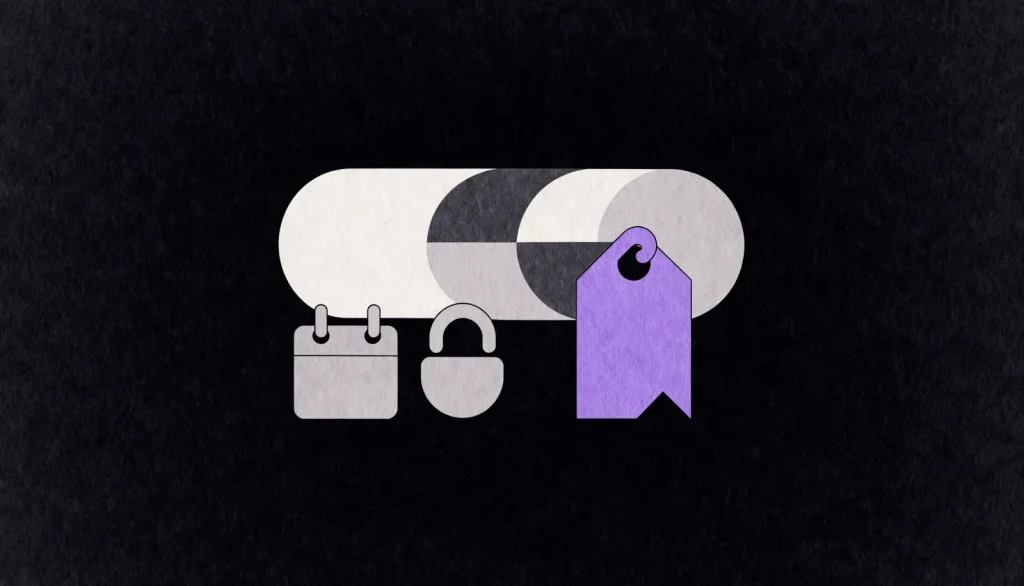
When the offer has rules, let a plugin build the link. CartPresets makes preset links that hold your price: you set up the items and their prices once in the admin, and the link reads like a name, such as yourstore.com/preset/starter-kit. Each gap above has a setting:
- Each item gets a percentage off, an amount off or a price you type, and the cart keeps that price through to payment, in the classic and block cart.
- The customer’s own items stay by default. A link can clear the cart instead, for the whole store or one preset (the cart behaviour docs explain each switch).
- Shoppers land on the cart, on checkout, back on the page they came from, or at any address you give.
- A preset can open and close at set times, stop after a number of orders in total or per customer, and admit only signed-in customers or chosen roles. A closed link sends people where you choose, with a message saying why.
- Lines that aren’t in your catalogue, such as a setup fee or gift wrap, can join the cart with their own name and price.
- A Presets report in WooCommerce Analytics shows net sales and orders for each preset.
Following a link costs the server very little: CartPresets resolves one in under 0.1 ms, whether the store has a hundred presets or nearly sixty thousand.
Dates, limits, roles, automatic coupons, items that aren’t products and the Analytics report are part of CartPresets Pro, and the docs list what each version does. Our cart link tutorial walks through your first preset link, step by step.
WooCommerce cart URL plugins compared
Every plugin below puts several products in one link. They differ in what else the link carries. Each row comes from the vendor’s own page, checked on 6 October 2026. “Not listed” means the page doesn’t mention it, so ask the vendor before you rule it out.
| Plugin | Custom price | Coupon | Dates or limits | Lands on | Also worth knowing |
|---|---|---|---|---|---|
| WooCommerce Cart URL (Shop Plugins) | Yes | Yes | Not listed | Cart, checkout or any page | Clear or keep the cart; pretty permalinks; subscription products |
| Add Multiple Products To Cart Via URL (Business Bloomer) | Not listed | Not listed | Not listed | Cart, checkout or any page | IDs or SKUs; can refuse the whole link if one product is out of stock |
| Generate Cart & Checkout Links (Plugify) | Fixed or percentage discount, or a discounted price | Not listed | Discounts for chosen user roles | Cart or checkout | Can fill the cart from a whole category; short URLs |
| Share Cart URL for WooCommerce (AICOSO) | Not listed | Yes | How long a link works, and who can open it | Cart, checkout or a custom page | Customers can save and share their own carts |
| CartLink Generator for WooCommerce (Elvin Haci) | Per product, or a discount on the subtotal | Yes | Expiry from 1 day to 1 year | Cart or checkout | A QR code for each link; custom fees such as a tip; shows whether a link was opened and ordered |
| Cart links for WooCommerce (Soft79) | Not listed | Not listed | Not listed | Cart | You fill your own cart and copy its link; last updated August 2020 |
| CartPresets (SmartWP Plugins) | Percentage, amount off or your own price, per item | Applied automatically (Pro) | Start and end, total and per-customer caps, roles (Pro) | Cart, checkout, the same page or any URL | Items that aren’t products; Presets report in WooCommerce Analytics (Pro) |
Sometimes another plugin is the better fit:
- If customers should save their own carts and send them to someone, Share Cart URL does that. A CartPresets preset is always built by the store.
- For one-off quotes sent over WhatsApp or live chat, CartLink Generator adds a QR code and an expiry to each link, shows whether the customer ordered, and is free on WordPress.org.
- Business Bloomer’s plugin builds links from SKUs, and on WordPress 6.9 or later an AI agent connected to your site can make them for you.
- Plugify’s links can fill the cart from an entire product category.
Which checkout link should you use?
Use WooCommerce’s own checkout link when the offer is a few products and perhaps a coupon, and the shopper is ready to pay. It comes with WooCommerce, so there’s nothing to install. Keep the add-to-cart URL for a single product, or for a store that hasn’t moved to WooCommerce 10 yet.
Reach for a plugin when the offer has a price you’ve promised, a closing date or a limit, or when you want a sales report for each offer. If that’s your next campaign, see how CartPresets builds the link.